Migration
Shopify Migration SEO Checklist: Pre-Launch, Launch and Post-Launch
Key takeaways
- Shopify's URL prefixes (/products/, /collections/, /pages/, /blogs/) are fixed, so almost every URL changes.
- Build a one-to-one 301 redirect map from a full crawl, Search Console and analytics, not from memory.
- Shopify auto-generates sitemap.xml and themes from the Theme Store output canonical tags; verify both on launch.
- Remove the storefront password before launch, or crawlers can't reach the site.
- Expect a few weeks of ranking fluctuation; keep redirects for at least a year.
Why do Shopify migrations lose SEO traffic?
Mainly because URLs change and nobody redirects them. Shopify uses fixed path prefixes, so when you move from WooCommerce, Wix, Squarespace or Magento, almost every product, category, page and post gets a new address. Missing redirects turn ranking pages into 404 errors.
The second cause is lost on-page content: titles, meta descriptions, alt text and category copy that lived in plugins or templates and didn't come across. Both are preventable with a checklist.
What is Shopify's URL structure?
Shopify's URL structure is fixed: you can edit the handle (the last part) but not the prefix. Plan every redirect around these patterns.
| Content type | Shopify URL pattern | Editable part |
|---|---|---|
| Product | /products/handle | Handle |
| Collection | /collections/handle | Handle |
| Product within a collection | /collections/handle/products/handle | Canonical points to /products/handle |
| Page | /pages/handle | Handle |
| Blog post | /blogs/blog-handle/post-handle | Blog and post handles |
| Policies | /policies/refund-policy etc. | Not editable |
Shopify doesn't support nested custom paths like /shop/mens/shirts/linen-shirt. Use menus and breadcrumbs for hierarchy instead. A good overview of these fixed prefixes is in this Shopify URL structure guide.
Pre-launch SEO checklist
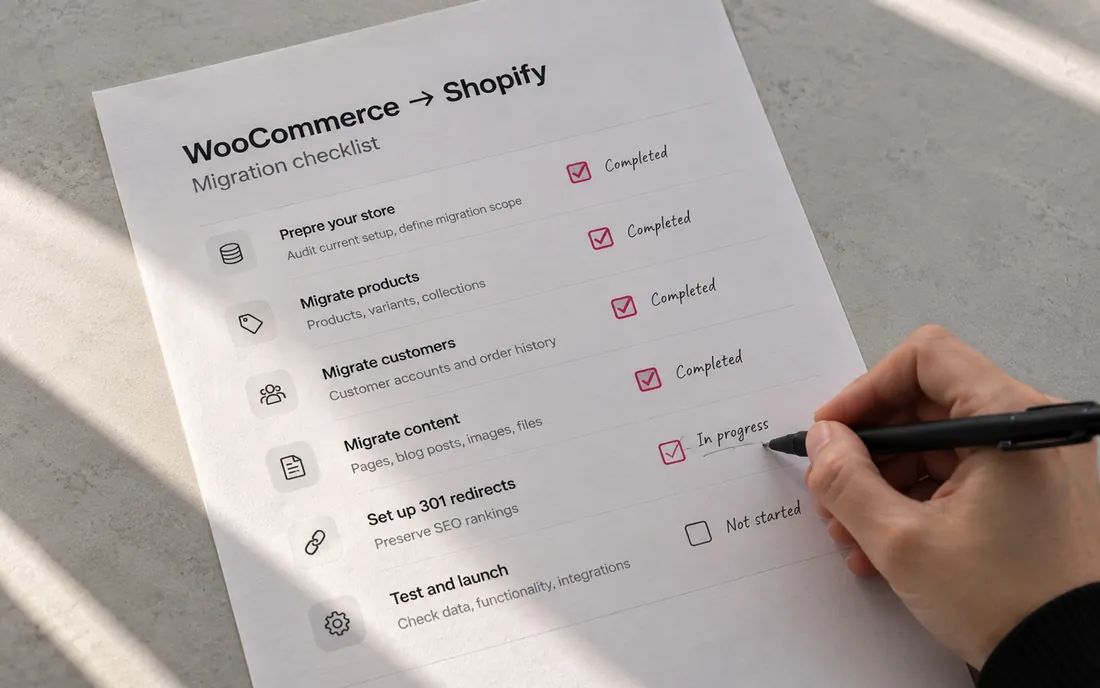
Most of the SEO work happens before launch. Do these while the old site is still live.
1. Benchmark and inventory
- Crawl the current site with a tool such as Screaming Frog or Sitebulb and export every URL with status code, title, meta description, H1 and canonical.
- Export the Pages and Performance reports from Google Search Console (last 12 to 16 months) to find URLs with clicks and impressions.
- Export top landing pages from your analytics tool.
- Export pages with backlinks from Ahrefs, Semrush or a similar tool.
- Download the old XML sitemap and keep it.
- Record baseline rankings for your 20 to 50 most important keywords.
2. Build the redirect map
- Combine all URL sources into one spreadsheet and remove duplicates.
- Map each old URL to its closest new Shopify URL: product to product, category to collection, post to post.
- Only redirect to the homepage when there's genuinely no equivalent. Google advises against redirecting many old URLs to one unrelated page in its site move guidance.
- Include old image, PDF and media URLs that earn traffic or links.
- Decide which parameter and filter URLs are worth redirecting; most aren't.
- Avoid chains: point every old URL straight at its final destination.
- Format the sheet as Redirect from and Redirect to, using relative paths for your own domain.
3. Content and metadata
- Carry over SEO titles and meta descriptions for products, collections, pages and posts. Shopify's product CSV supports SEO titles of up to 70 characters, per its CSV documentation.
- Check that metadata stored in plugins (for example Yoast on WordPress) was actually exported; it often isn't part of the product record.
- Keep product and category descriptions; don't replace ranking copy with thinner text.
- Recreate image alt text.
- Keep H1s matching the page's main topic.
- Rebuild structured data: confirm your theme outputs Product schema with price and availability.
4. Technical setup on Shopify
- Import redirects under Content, Menus, View URL redirects, using CSV import. Standard plans allow up to 100,000 redirects and Shopify Plus up to 20 million, per Shopify's redirect documentation.
- Check canonical tags. Shopify Theme Store themes canonicalize URLs automatically, according to Shopify; third-party or custom themes should output the canonical_url Liquid object in the head, as described in the theme metadata docs.
- Make sure internal links in the theme point to /products/handle rather than collection-nested product URLs.
- Review robots.txt. Shopify's default works for most stores; customize it only through robots.txt.liquid, per Shopify's developer docs.
- If you sell internationally, set up Shopify Markets and confirm hreflang output.
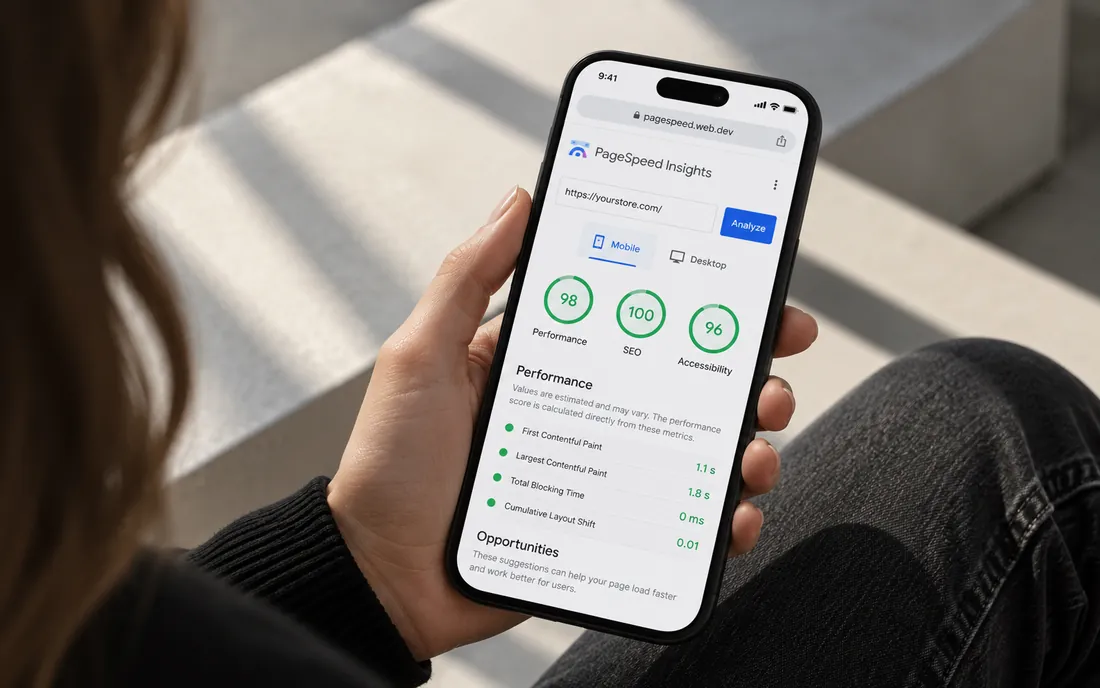
- Test page speed on mobile with your real apps installed.
Launch day SEO checklist
On launch day, make the site crawlable, confirm redirects work and tell Google about the new sitemap.
- Remove the storefront password. Shopify notes crawlers can't access the sitemap while the store is in private mode, in its sitemap documentation.
- Disconnect the domain from the old platform, then connect it to Shopify and set the primary domain.
- Test a sample of redirects (at least your top 50 URLs) and confirm each returns a 301 to the right page, not a 302 or a chain.
- Verify the domain in Google Search Console (DNS or the HTML tag in theme.liquid).
- Submit sitemap.xml in Search Console. Shopify generates it automatically and links product, collection, page and blog sitemaps from it.
- Keep the old sitemap available to submit or review, so you can watch Google process the old URLs.
- If the domain itself changed, use Search Console's Change of Address tool. It isn't needed when only paths change on the same domain.
- Request indexing for the homepage and a handful of key collections.
- Confirm analytics and conversion tracking fire on Shopify.
Post-launch SEO checklist
Monitor closely for the first four to six weeks, then monthly. Google notes that medium-sized sites can take a few weeks or more to settle after a move.
- Daily, week one: check Search Console for crawl errors and new 404s; add redirects for any old URLs you missed.
- Weekly, weeks one to six: compare clicks, impressions and rankings with your baseline; review the Pages report for excluded or not-indexed URLs.
- Recrawl the new site to catch broken internal links, redirect chains and missing metadata.
- Update important backlinks (partners, directories, social profiles) to point directly at new URLs.
- Hold off on major redesigns, handle changes or content cuts until rankings stabilize.
- Keep every redirect for at least a year, and ideally indefinitely.
What causes rankings to drop after a Shopify migration?
The usual culprits, in order of how often we see them:
- Missing or incorrect redirects, especially for blog posts and categories.
- Lost category and collection copy.
- Storefront password left on, or robots rules blocking crawlers.
- Changed handles after launch without new redirects.
- Slower pages from too many apps.
A short dip in the first weeks is normal. A drop that keeps growing after four weeks almost always traces back to one of these.
Platform-specific migration guides
Each source platform has its own URL quirks. See our guides for WooCommerce, Wix, Squarespace and Magento, and our broader Shopify SEO guide for after launch.
How we can help
We build the redirect map, carry over metadata and run launch checks as part of every migration we do. If you want help protecting your rankings during a move, see our Shopify migration service or our Shopify SEO and CRO work.
Send us your store URL and we'll email you the fixes that matter most. No call needed.
Frequently asked questions
Does Shopify create 301 redirects automatically during a migration?
No. When you migrate from another platform, you need to create redirects yourself, either one by one or by importing a CSV under Content, Menus, View URL redirects. Migration apps such as LitExtension and Matrixify can import redirects as part of the move. Redirects only trigger when the old URL would otherwise return a 404.
Can I remove /products/ or /collections/ from Shopify URLs?
No. Shopify's /products/, /collections/, /pages/ and /blogs/ prefixes are fixed. You can only edit the handle at the end of each URL, so plan redirects around those patterns.
How long does it take to recover SEO after moving to Shopify?
With a complete redirect map, most stores see rankings settle within a few weeks. Google says medium-sized sites can take a few weeks or more to be fully processed, and larger sites longer. If traffic is still falling after four to six weeks, check for missing redirects first.
Do I need to submit a sitemap after migrating to Shopify?
Yes. Shopify generates sitemap.xml automatically, but you should submit it in Google Search Console on launch day so Google discovers the new URLs faster. Make sure the storefront password is off first, or crawlers can't access it.
How many redirects can a Shopify store have?
Shopify allows up to 100,000 URL redirects on standard plans and up to 20 million on Shopify Plus. Most migrations need far fewer, but very large catalogs with many legacy URLs can approach the standard limit.
Sources
- Shopify Help Center: Creating and managing URL redirects
- Shopify Help Center: Finding and submitting your sitemap
- Shopify Help Center: Using CSV files to import and export products
- Shopify Blog: How to set canonical URLs on Shopify
- Shopify Dev Docs: Theme metadata
- Shopify Dev Docs: Customize robots.txt
- Google Search Central: Site moves with URL changes
- TinySEO: Shopify URL structure, limitations and SEO
- Shopify Help Center: Migrating to Shopify